Answer Customer Questions Between Site Visits With Field Care
A supplier gives customers grounded technical answers between site visits by sharing each customer's line records, documents and visit logs in Lubinpla Field Care. The Field Care Agent answers from that material but knows only a file's name, type and date. Visit-log questions reach your engineer as comments, and requested readings wait for review by default.
Under US OSHA, a chemical distributor must send safety data sheets with a customer's first shipment and again with the first shipment after a sheet is updated (29 CFR 1910.1200(g)(7)).
Under US OSHA, the employer at a customer's plant must keep safety data sheets readily accessible to employees in their work areas during each work shift, so one buyer's inbox is not enough (29 CFR 1910.1200(g)(8)).
Between site visits, a customer's technical questions and field readings arrive by email, photo and phone call, and the line history stays only as current as the last value someone retyped into it.
Lubinpla Field Care gives each customer contact a space with the lines, documents, files and visit logs the supplier chooses to share, and an agent there answers the contact's questions from that shared material.
In Lubinpla Field Care, readings a customer returns to a request for field data wait for the supplier's review by default, and each approved value joins the line's condition history under the contact's name.
What happens when a customer has a technical question between site visits?
A customer's technical question between site visits usually lands in one engineer's inbox and waits until that engineer has a free hour. Picture a technical service engineer for a supplier of alkaline parts cleaners. She visits a customer's wash line once a month, checks bath concentration and temperature, and sends a visit report as a PDF attachment.
Between visits the questions keep coming. The plant's process engineer emails a photo of a titration result and asks whether the bath needs a top-up. A new shift lead asks for the current SDS (safety data sheet) because an auditor is due, and nobody on site can find the copy sent months earlier. The quality manager asks why the cleaner was changed at an earlier visit, a decision recorded only in a report he never received.
The engineer answers from a hotel room near another customer's plant. She retypes the titration value into her own spreadsheet, searches her sent mail for the SDS, and rebuilds the reasoning behind the change from memory. Each reply is right for the person who asked and invisible to everyone else at the plant. When the next question arrives, the search starts again.
Why do technical answers by email fail chemical customers?
Technical answers by email fail chemical customers because each reply leaves the record behind: the answer goes to one person, while the line data, the documents and the reasoning stay with the supplier. The customer cannot check a reply against anything, and the supplier cannot see what the customer already has.
Documents show the gap clearly. Under the US OSHA Hazard Communication Standard, a distributor must provide safety data sheets with the initial shipment and with the first shipment after an update (US OSHA, 29 CFR 1910.1200(g)(7), accessed 2026). The customer, as the employer, must keep those sheets "readily accessible during each work shift to employees when they are in their work area(s)" (US OSHA, 29 CFR 1910.1200(g)(8), accessed 2026). A current SDS that sits in one buyer's inbox may meet the delivery duty and still leave the plant's access to chance.
Field data has the opposite problem. Readings come back as photos, phone calls and spreadsheet rows, and someone on the supplier side retypes them into the line history, or does not. The next answer then rests on whatever value was typed last, with no record of who measured it.
Neither failure comes from lack of effort. Both come from the answer and the record living in different places.
Why do general AI tools and shared folders hit limits in customer technical support?
General AI tools and shared folders do help with customer technical support, and they deserve credit first. A shared folder link gets a customer the current data sheets the same afternoon. A general AI tool, given a pasted visit report and a TDS (technical data sheet), drafts a clear reply in a minute. For one customer and one engineer, that setup works.
The limits show as the customer list grows. The work does not run end to end: readings arrive by email, the engineer pastes them into the AI tool or a spreadsheet, and the line history the next answer depends on is updated by hand, if at all. The context covers one place at a time: the folder holds documents but not the condition history, and the AI tool sees only what was pasted that day, not earlier visit logs or the reason a product was changed. The upkeep falls on one person: folder permissions per customer, which revision sits where, and the prompt that happens to work. All of it stops when that engineer moves to another territory.
Field Care works from the account records your team already keeps. A shared project shows the customer each condition with its Value history, and each value a contact adds lands in your condition history under their name.
How do you set up Field Care for customer questions between visits?
You set up Field Care by inviting contacts, sharing what they should see, and requesting readings when you need them. In the app guide, the customer's side is called Client Space.
Invite contacts. On the account's Contacts tab, press Invite on the contact's row. The row shows Pending invitation, then Registered once the contact signs up. If the link expires, press Resend.
Share the line and records. Share a project with the scope button in its header. For a document in Deliverables, select the Shared column, choose Private, All contacts or Selected contacts under Who can see this, and press Save. Dataroom files use Shared with; a work log uses the scope button in its header once it has a linked project.
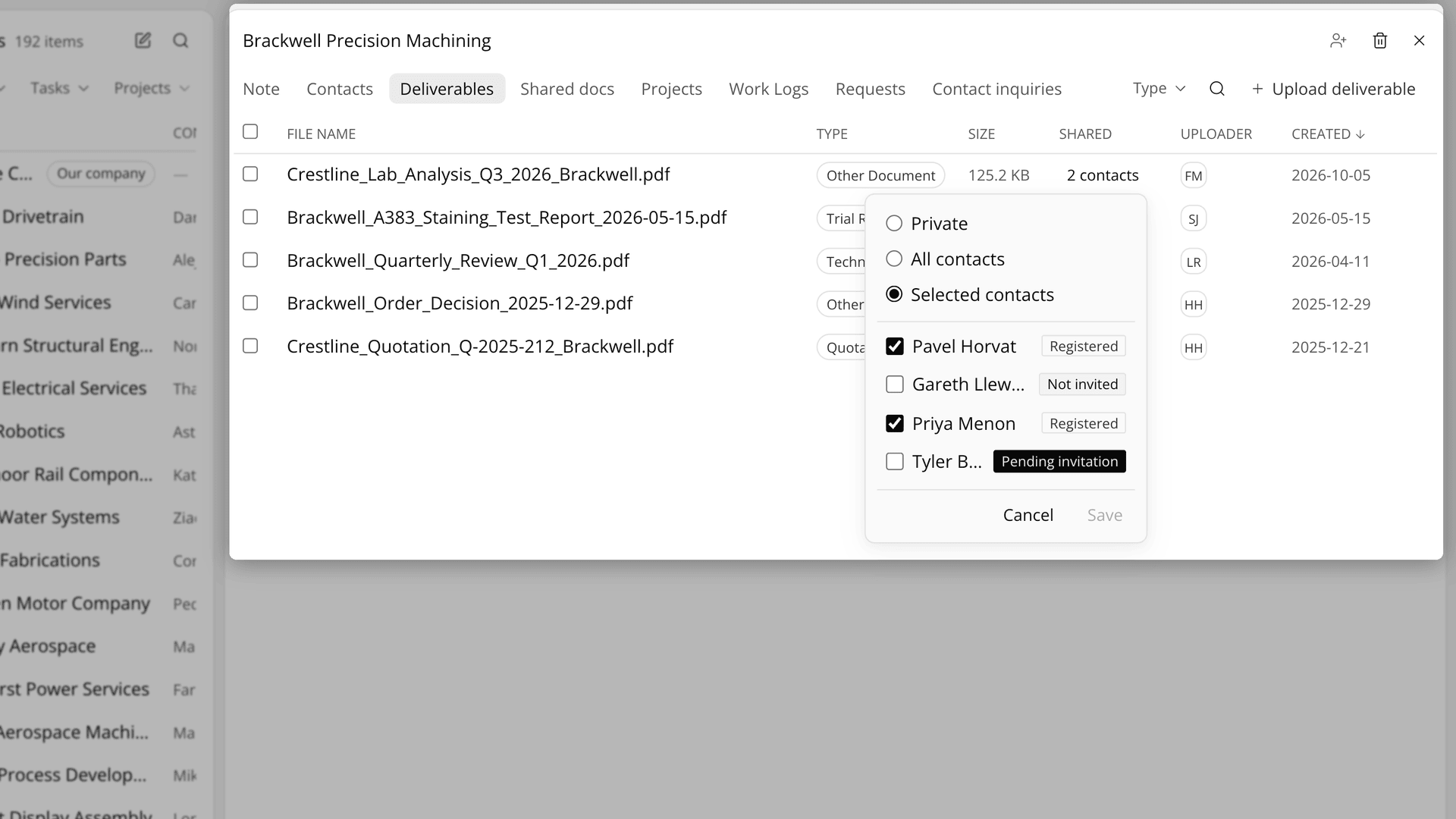
Figure 1. A document in Deliverables is shared with two chosen contacts and no one else.
Let the customer ask. Contacts ask the Field Care Agent in their space or comment on a shared work log, where the comment reaches you with a Contact label. AI Chat can draft your reply, and you paste it in yourself.
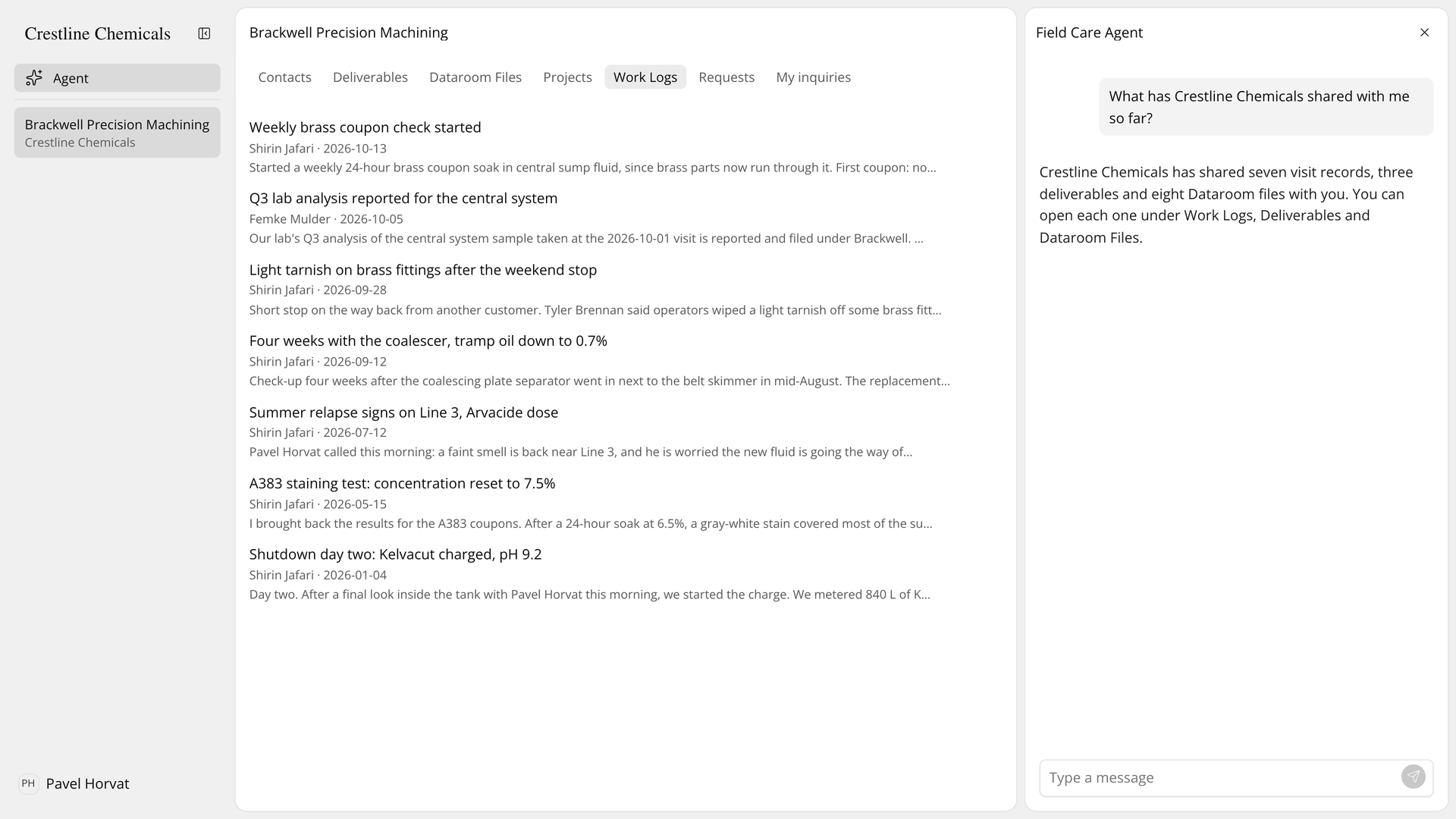
Figure 2. A contact's space lists the shared work logs, with the Field Care Agent summing up what was shared.
Request readings. On the Requests tab, press Request data, write a Title and Description, add conditions from shared projects or free items, choose Recipients and press Send request.
Review the answers. On each card press Approve, Edit then Edit and approve, or Reject, then Complete. For a trusted customer, Apply condition values automatically lets their condition values land on submission; free answers still wait.
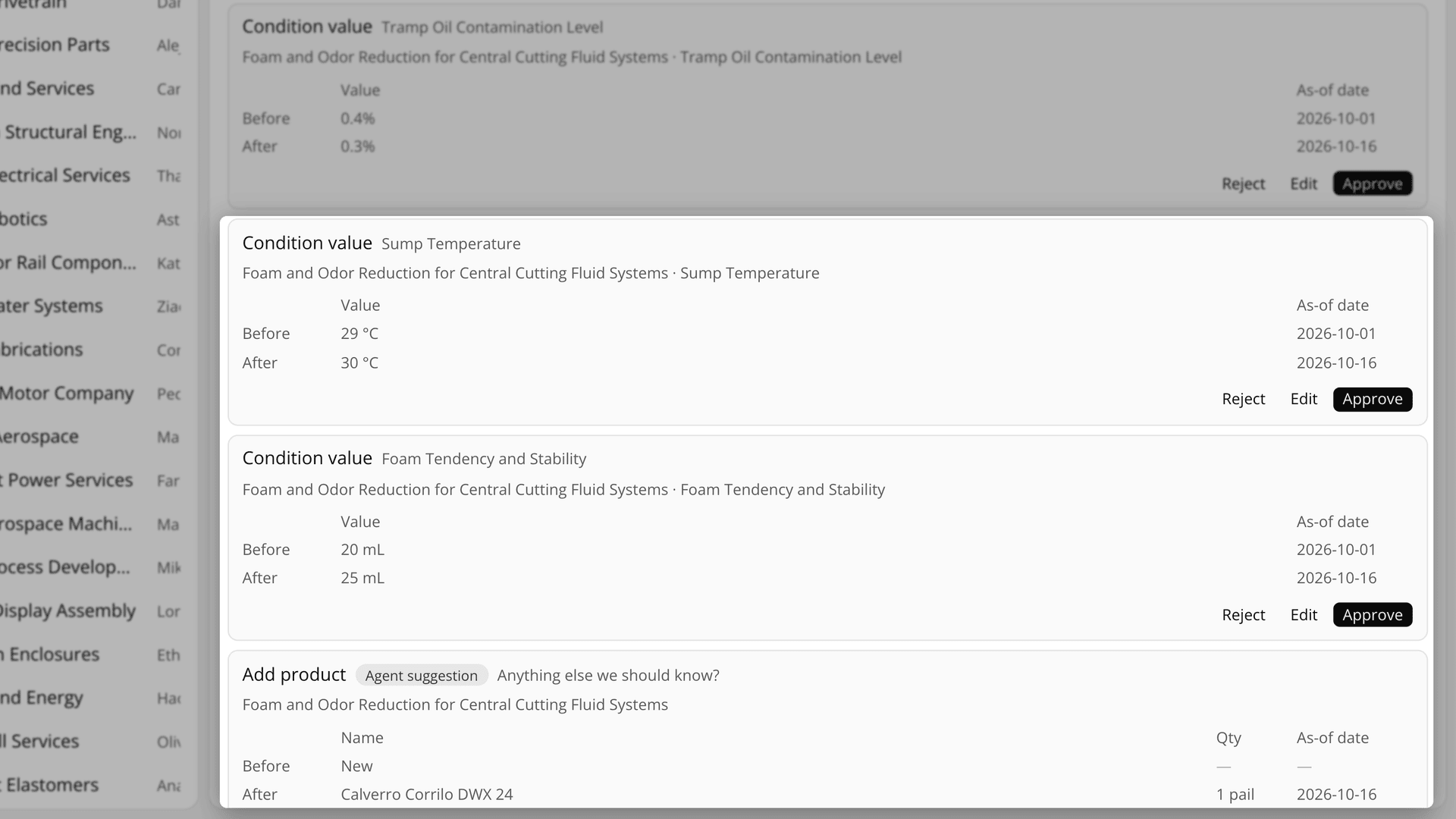
Figure 3. Answers to a field data request wait as cards that show each value before and after, next to an agent suggestion to add a product.
The Academy video walks through Field Care in the app, from the supplier's account to the customer's space.
How does Field Care compare with email for customer questions?
Field Care keeps the customer's documents, line records and conversations on the same account your team works from, where email splits them across inboxes. The table below follows a customer question from the moment it is asked to the answer on record:
Work | Email, shared folder and spreadsheet | Field Care |
|---|---|---|
Give the customer current documents | Attach to a mail, or send a folder link | Share a Deliverables document or Dataroom file with chosen contacts |
Show the state of the line | A PDF visit report | A shared project with Conditions, Value history and Products in use |
Answer a quick question | The engineer replies when free | The Field Care Agent answers from the contact's space |
Discuss a visit | A reply chain apart from the report | Comments on the shared work log |
Collect readings | Photos and calls, retyped by hand | A field data request, reviewed as Before and After cards |
Stop sharing | A sent mail cannot be recalled | Choose Private again and the item leaves the contacts' view |
The row that changes most is collecting readings. By email, a value arrives as a photo, and whether it reaches the line history depends on who retypes it. With a field data request, the contact answers in a form or in conversation with the Field Care Agent, which compares each answer with the values already on record and, when the format differs, shows a matching value and submits only after the contact agrees. By default the value then waits for someone on your team to approve it, and an approved value joins the condition history under the contact's name. The Field Care page sets out what your team and your customers each get.
What does the Field Care Agent not answer for customers?
The Field Care Agent does not read the contents of shared files. Of a file it knows only the name, type and date, so it cannot tell a customer what an SDS says about storage; the customer opens the shared document for that. Questions that need technical judgment belong in a comment on the visit log, where your engineer answers.
The agent cannot change projects, condition values, products, notes or work logs. When a contact asks for such a change, it points them to the right screen. Contacts working directly in a shared project are a different case: values they add apply at once without your review, and they can also change or delete existing values, which are overwritten in place. When you want to check readings first, ask for them with a field data request.
Sharing a work log shows contacts the whole log with its photos and every comment on it, including your team's comments written before you shared it. Read the thread before you change the scope.
Field Care Agent conversations use your organization's credits. When the balance runs out, contacts are asked to enter their values in Requests instead. If you already use Lubinpla, the Field Care guide in the app covers every screen in full.