Keep TDS, SDS and CoA Files Current and Findable With Dataroom
Lubinpla's Dataroom keeps a technical team's TDS, SDS and CoA files findable by tagging each with document type, product type and brand. Tags are suggested from folder paths and file names, and a person checks them. AI Chat and task steps find files by those tags. A person still uploads each revision and retires the old one.
Under the US OSHA Hazard Communication Standard, a distributor must pass an updated safety data sheet to the distributors and employers it supplies with the first shipment after the update (29 CFR 1910.1200(g)(7)).
Under EU REACH, a supplier that revises a safety data sheet on new hazard information must send the new, dated version free of charge to everyone it supplied in the preceding 12 months (Regulation 1907/2006, Article 31 paragraph 9).
A certificate of analysis is issued for each batch, so the right CoA for a customer is the one whose lot number matches the delivery, not the newest file in the shared folder.
Lubinpla's Dataroom tags each TDS, SDS and CoA with a document type, product type and brand, suggested from existing folder paths and file names, and AI Chat and task steps find data sheets by those tags.
The Dataroom compares the content of each uploaded file rather than its name, so a renamed copy of an SDS is caught before it is stored twice, while a revised sheet goes in as a new file.
What happens today when a customer asks for the current SDS and CoA?
A customer's request for the current SDS (safety data sheet) and CoA (certificate of analysis) usually turns into a search through email and a shared folder that nobody owns. Picture a technical service engineer at a distributor that carries coolants from several manufacturers. A customer's EHS coordinator is getting ready for a plant audit and asks for the current SDS of a glycol coolant the plant buys, plus the certificate for the last delivery.
The engineer opens the shared drive. The manufacturer's folder has subfolders by year, a folder called "new", and a TDS (technical data sheet) that a colleague saved under the trade name instead of the product code. Two SDS files have nearly the same name. The newer one arrived as an email attachment when the manufacturer revised the sheet, and it sat in a sales rep's inbox for weeks before anyone moved it to the drive.
The certificate is harder still. A CoA comes with each batch, by email, and only some of them get saved. The engineer asks the warehouse, then the sales rep, then the manufacturer, and the coordinator waits.
Two weeks later a second customer asks for the same SDS. A different engineer runs the same search, finds the older file first, and sends it.
Why do TDS, SDS and CoA files go stale in shared folders?
TDS, SDS and CoA files go stale in shared folders because a folder records where someone put a file, not what the file is or whether it is still the one in force. Safety data sheets are revised when hazard information changes, and the law says who receives the new one. Under the US OSHA Hazard Communication Standard, a distributor must ensure that "safety data sheets, and updated information, are provided to other distributors and employers with their initial shipment and with the first shipment after a safety data sheet is updated" (US OSHA, 29 CFR 1910.1200(g)(7), accessed 2026). Under EU REACH, a supplier that updates an SDS on new hazard or risk information sends the new, dated version free of charge to every recipient it supplied within the preceding 12 months (European Union, Regulation 1907/2006, Article 31 paragraph 9, consolidated 2026). Both duties assume the team can find the current revision when it is needed.
A folder tree works against that. One manufacturer appears under two spellings, so its files are split across two folders. Copies multiply because every person saves the attachment they received. Certificates of analysis are issued per batch, so their number grows with each delivery, and the right one is the one that matches the lot number, not the newest file in the folder.
What remains is a search that depends on who filed the document and how they named it. When that person changes roles, the naming logic leaves with them.
Why do general AI tools and shared-drive setups lose track of SDS files?
General AI tools and shared-drive setups help with SDS and TDS files at first and lose track of them as the library grows. What works is real: uploading a few PDFs to a general AI chat and asking for a flash point or a dilution range gives a quick, useful answer, and a colleague who connects an agent to the shared drive saves the team real searching.
The limits show over time. The first is that the agent works from copies. Files uploaded to a chat or exported for a connection are a snapshot, and when a manufacturer revises an SDS, the snapshot keeps the old revision until someone replaces it by hand.
The second is that more files make the answers less reliable. Putting a manufacturer's full set of sheets into one long prompt runs into a measured limit of language models: performance "significantly degrades when models must access relevant information in the middle of long contexts, even for explicitly long-context models" (Liu et al., TACL, 2024). Near-identical file names and duplicate copies add to the problem.
The third is upkeep. Someone keeps folder names consistent, prunes copies and repairs the connection, and it stops when that person moves on.
The Dataroom takes a different route: one shared shelf for the whole organization, files found by three tags instead of folder paths, copies caught by their content, and AI Chat and task steps that look in it by those tags and read the files they find.
How do you set up the Dataroom for TDS, SDS and CoA files?
You set up the Dataroom by uploading the folders you already keep, checking the suggested tags, settling copies and tidying brand names.
In Dataroom, press Upload. Drag a whole folder onto the area that says Drop files or a folder here to upload, or press Choose folder. Every file in the folder and its subfolders joins one list, with its folder path under the file name.
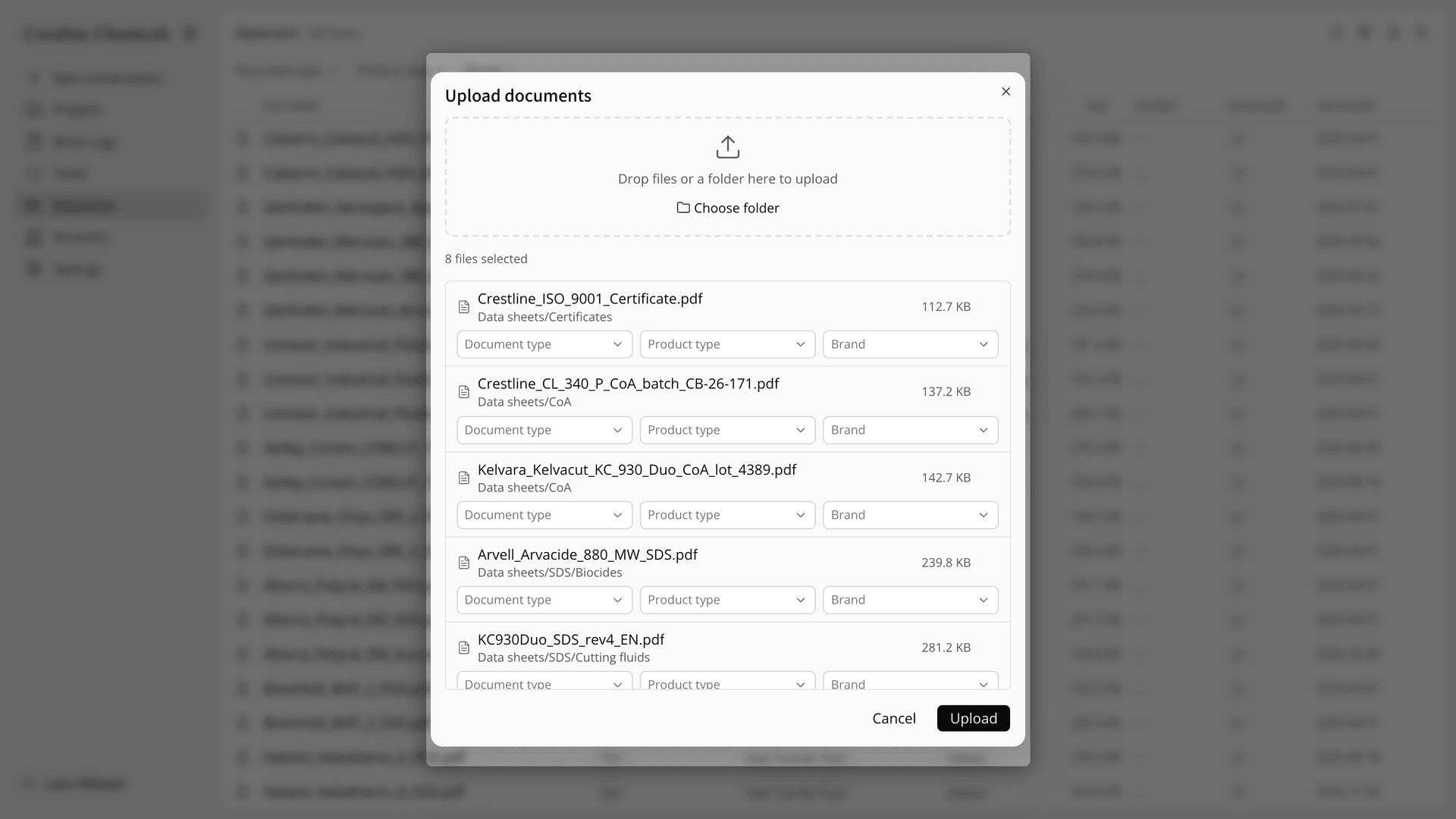
Figure 1. A dropped folder arrives as one list, ready to be checked.
Check the tags. Document type, Product type and Brand fill in on each row. Where a suggestion is wrong, pick the right value. Where the path gave no clue, leave the field empty, and the file waits under Untagged. Then press Upload.
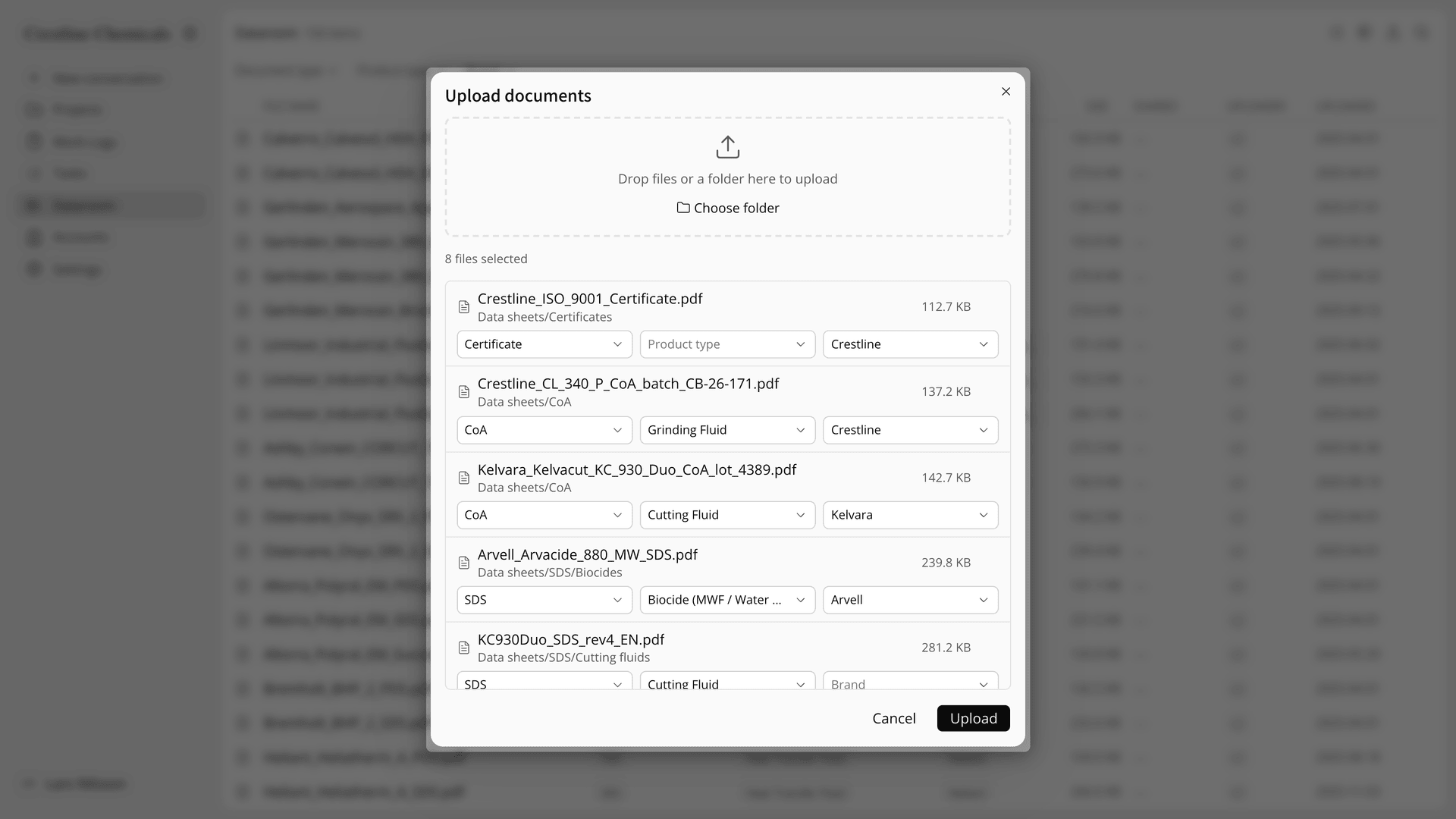
Figure 2. The tags are suggested for you, and you only correct what is wrong.
Settle the copies. A file the Dataroom already holds stays in the dialog marked Already in dataroom. Press Remove on that row, or Upload anyway for a second copy with different tags.
Tidy brand names. In Manage brands, press Add spelling under a brand to teach Lubinpla another spelling, or choose Merge on a duplicate brand to fold it into the one you keep.
Find what you need. Combine the Document type, Product type and Brand filters, such as SDS and one brand, then open a file to read its preview beside its tags.
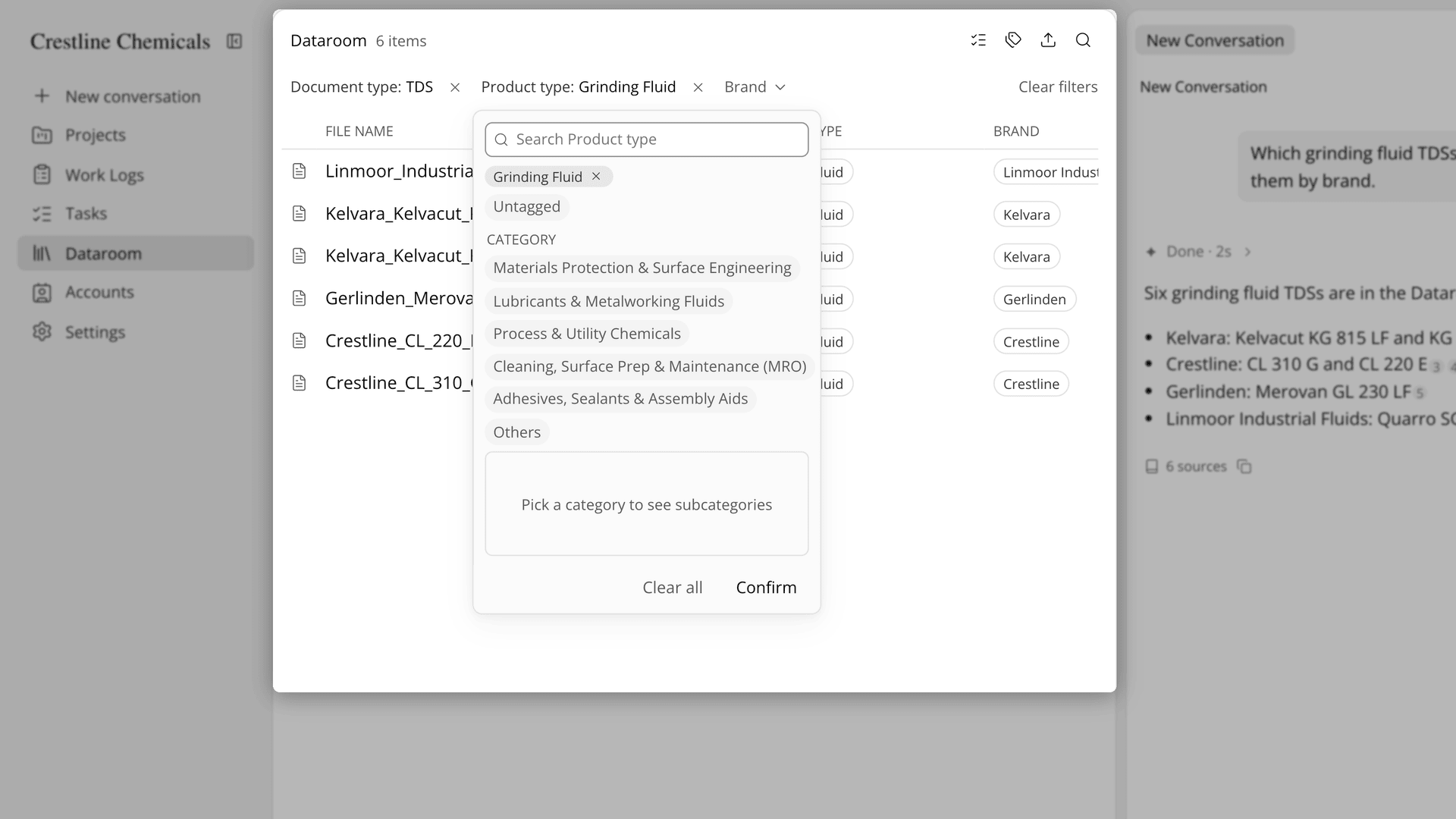
Figure 3. Filters pull up exactly the sheets you need and the files still missing a tag.
The Academy video shows a folder dropped in and tagged from its paths, two spellings of one maker merged, the filters at work, and an AI answer that quotes the data sheets it read.
How does the Dataroom compare with a shared folder for data sheets?
The Dataroom finds data sheets by what they are, where a shared folder finds them by where someone saved them. The table below compares how each kind of file request gets answered in the two setups:
Work | Shared folder and email | Dataroom |
|---|---|---|
File a batch of new sheets | Sort into folders by hand | Drop the folder, check the suggested tags |
Find every SDS from one maker | Open each folder the maker might be in | Filter by SDS and the brand |
The same sheet saved twice | Copies pile up under different names | Caught by content as Already in dataroom |
One maker, two spellings | Two folders, half the files in each | Add spelling or Merge in Manage brands |
A revised SDS arrives | Saved beside the old one, or left in an inbox | Uploaded as a new file, the old one deleted by a person |
Files missing information | No way to list them | Untagged in each filter |
Answer a question from a sheet | Open the PDF and read it | AI Chat and task steps find it by tags and read it |
The row that decides whether a team sends the current revision is the revised SDS. In a shared folder, the new sheet often lands in one person's inbox and the old one keeps answering searches. In the Dataroom, the new revision goes in for everyone, and whoever uploads it can delete the old file, which moves to Trash.
The last row matters when the sheet feeds a customer answer. Because AI Chat and a task that prepares a product recommendation look in the Dataroom by document type, product type and brand, a well-tagged sheet turns up as evidence. A sheet without tags is easy to miss, so the Untagged filter is worth opening now and then to finish what an upload left empty.
What does the Dataroom not do for TDS, SDS and CoA control?
The Dataroom does not decide which revision of a sheet is in force. A new revision has different content, so it goes in as a new file next to the old one, and both stay in the list until someone deletes the old one. A deleted file stays in Trash for 30 days and is then deleted permanently. A revision date in the file name still helps your team tell two versions apart.
Tag suggestions read only the folder path and the file name. A scan called "doc_0042.pdf" in a folder called "misc" arrives with empty fields, and a CoA filed under the wrong product type is harder to find than one with no tag at all, because a search for the right product type no longer shows it. The check before Upload is the step that matters.
The folder structure is not kept: the Dataroom is one flat list, and the tags take the place of folders. Files over 100MB are left out at upload. Anyone in the organization can upload, retag, rename and delete files, so agree on who retires old revisions.
Files you attach in AI Chat are not added to the Dataroom, so upload a certificate there if the team should keep it. If you already use Lubinpla, the Dataroom guide in the app covers sharing a file with a customer's contacts and working on several files at once.