Run a Submission Document Check on Your TDS, SDS and CoA Package
A quality team can check a TDS, SDS, CoA and certificate package against a customer's list by running a Submission Document Check task in Lubinpla. The task reads the list from a work log, adds the published regulatory requirements, checks the documents in the Dataroom, then judges send, send after remediation or hold. A person approves the resulting checklist.
An SDS that passes in the US can fail in the EU: OSHA requires English and a preparation or revision date in Section 16, REACH an official language of the Member State where it is placed on the market (29 CFR 1910.1200(g); Regulation 1907/2006, Article 31).
The receiving side reads a submission package as a set, so a CoA for a lot other than the one being shipped, or an SDS revision that differs from the TDS reference, can get it sent back.
A customer's document list is where the check starts, not the whole requirement: the regulation that applies to the submission can call for a declaration or certificate the list never named.
Lubinpla adds the published regulatory requirements to the customer's list, checks each document's state and where documents contradict each other, then judges whether to send, send after remediation or hold, in a checklist a person approves.
In Lubinpla's internal benchmark, a submission document check got its answer to the customer in about 4 days, where a general AI agent working the same cases and documents took about 17 days.
What happens today when a customer asks for a submission document package?
A customer's request for a submission document package usually arrives as an email list with a deadline, and the check behind it is done by hand. Picture a regulatory specialist at a specialty chemical supplier reading a message from an OEM customer's quality team. Before approving a new product for its plants, the customer wants the latest safety data sheet (SDS) in the local language, the technical data sheet (TDS), a certificate of analysis (CoA) for the latest lot, a REACH declaration and a statement that the product contains no chlorinated additives, all by the end of the month.
The documents come from several places. The manufacturer sends the SDS and the CoA by email. The TDS sits on the shared drive in two revisions with similar file names. The declaration is a template someone signed for a different customer, and the statement on additives has to be written from scratch.
The specialist opens each PDF and compares revision numbers, issue dates, expiry dates, product names and lot numbers side by side, in a spreadsheet built for this one request. The package goes out on time. Then the customer's quality team sends it back: the CoA covers a lot other than the one being shipped, and the SDS revision differs from the one the TDS refers to. The approval slips, and the first shipment waits with it.
Why do submission document packages get rejected?
Submission document packages get rejected because each document follows its own revision clock and its own rules, and the package is only as current as its oldest page. Safety data sheet rules also differ by jurisdiction. In the US, the OSHA Hazard Communication Standard requires the SDS to be in English and to give, in Section 16, the date of preparation or last revision (US OSHA, 29 CFR 1910.1200, accessed 2026). In the EU, REACH requires the SDS to be dated and supplied in an official language of the Member State where the product is placed on the market, unless that state provides otherwise (European Union, Regulation 1907/2006, Article 31, consolidated 2026). A package that passes for one market can fail for another.
The second failure is consistency. A TDS, an SDS, a CoA and a declaration are often issued by different people at different times, so a product name, a revision reference or a lot number can disagree between them. The receiving side reads them together, even when the sender checked them one by one.
The third failure is the list itself. A customer's list is where the check starts, not the whole requirement. A document the customer forgot to name may still be required by the regulation that applies to the submission, and the gap only shows when the authority or the OEM asks for it.
Why do general AI tools miss gaps in a document package check?
General AI tools handle a document package check well while the package is small, and miss gaps as documents and revisions pile up. Upload two PDFs to a general assistant and it compares their product names and dates in seconds, and it summarizes a long SDS faster than anyone can read it.
The first limit is copies. The assistant checks the files someone chose to upload, not the current set, so whether it read the latest SDS revision depends on who picked the file. Its findings stay in the chat, and the shared drive and the customer record never learn which document failed or who is fixing it.
The second limit is volume. A full package with older revisions, supplier certificates and past declarations makes a long input. In controlled multi-document tests, language models used information near the start or end of the input better than information in the middle (Liu et al., TACL 2024).
The third limit is the customer's own conditions. A general model knows what an SDS usually contains, not that this customer requires an SDS in the local language for every new product.
In Lubinpla, the task reads the customer's list from a work log, the account note for standing requirements, and the documents in the Dataroom, and it opens each document to judge its state even when older revisions sit beside it.
How do you run a Submission Document Check on a document package?
You run a Submission Document Check by saving the customer's list as a work log, gathering the documents in the Dataroom and handing the package to the task. The steps follow the in-app Submission Document Check guide (2026-10-16), whose example is Stanbury, a sample account registering a replacement product, CoolTec 700.
Save the list. Press New conversation and send "/worklog" followed by the list as you received it, or, with Gmail connected, ask AI Chat to read the request email. AI Chat links the work log to the account and project. A requirement the customer always has belongs in the account note.
Gather the documents. In the Dataroom, press Upload and check the suggested document type, product type and brand tags on each row. Put the product name in the file names to make them easy to find.
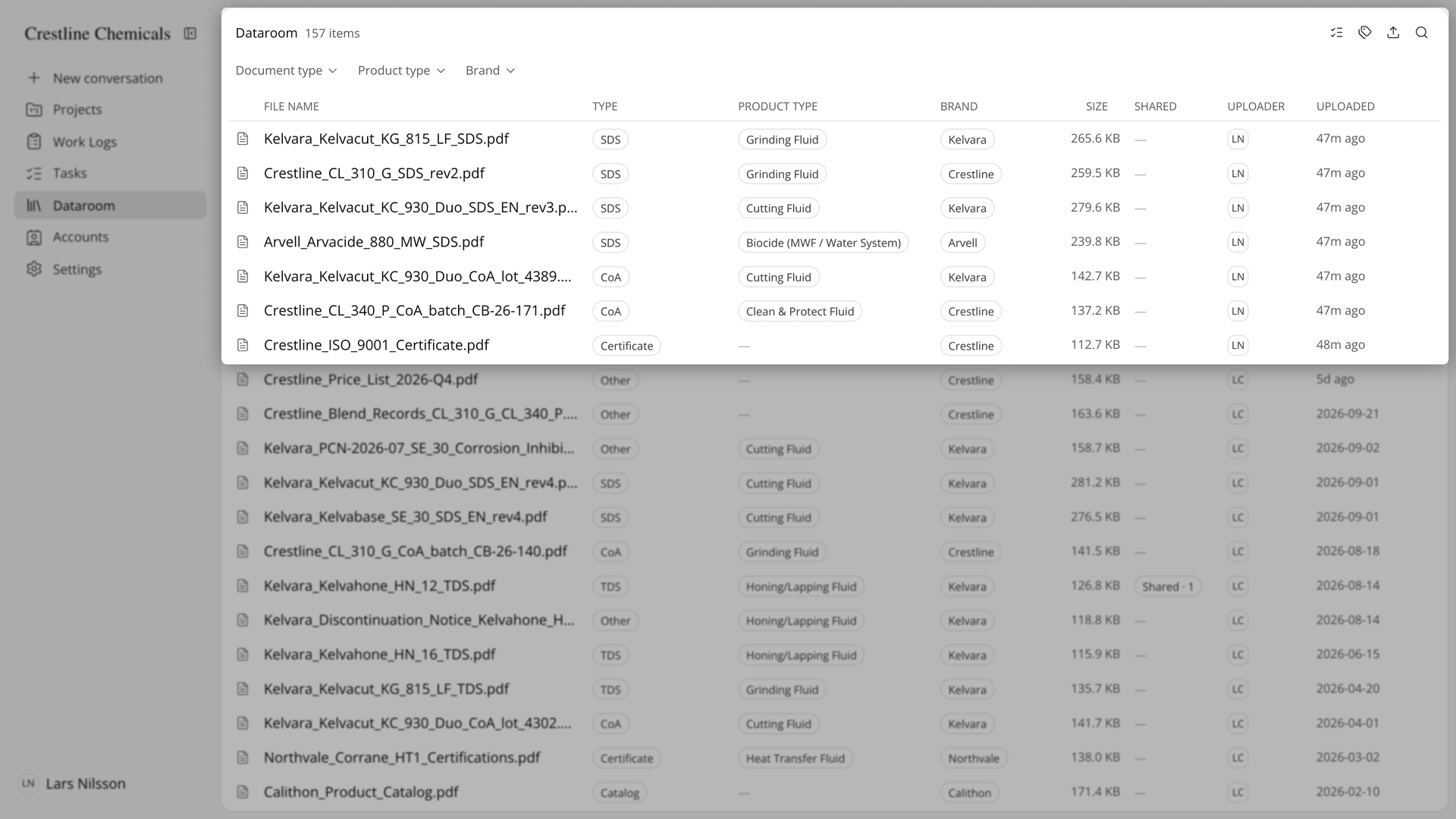
Figure 1. The Dataroom holding the documents to submit, each row carrying its document type tag.
Start the task. Open the project from the account's Projects tab, press New conversation and send "/task Check the CoolTec 700 registration documents against the Stanbury quality team's list in today's work log". Check that the card shows Submission Document Check, the account and the project, then press Approve, as in a product recommendation task.
Read the result. Step 01 first asks for the submission's purpose and the receiving side's requirements on the Questions from the agent card. Its conclusion gives the release position and the defects that block it. If a finding is unclear, select the sentence and press Ask.
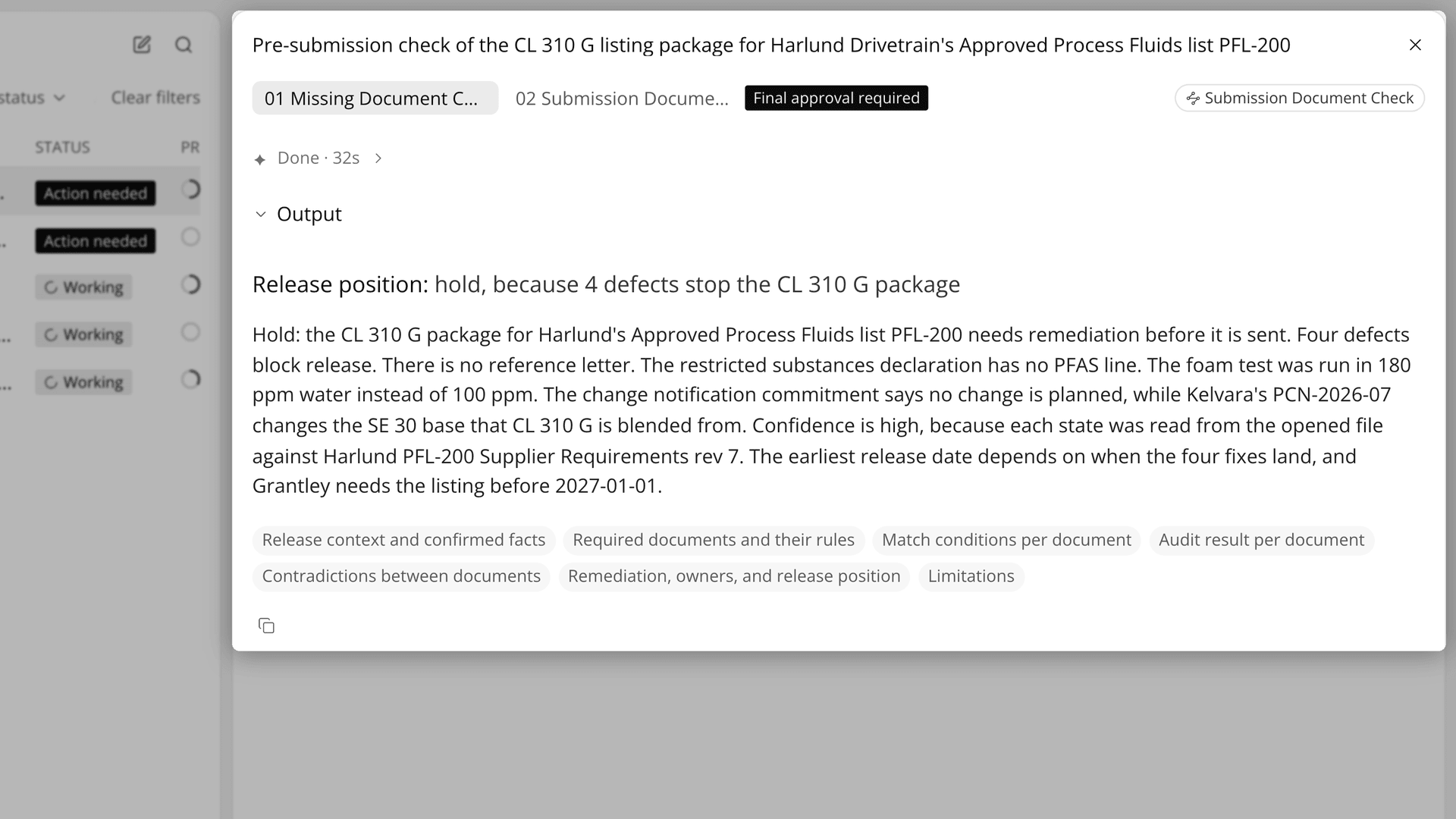
Figure 2. The step 01 conclusion, leading with the release position and the defects that block it.
Approve and remediate. Accept or reject each edit suggestion and press Approve and finish. The checklist is filed as a PDF in the account's Deliverables. Upload the corrected documents and start a new check the same way.
How does a Submission Document Check compare with a manual checklist?
A Submission Document Check sets the required documents first and then checks every document against those requirements and against each other, where a manual checklist compares the folder with the customer's email. The table below sets each part of the check against the two ways of doing it:
Work | Email, shared drive and spreadsheet | Submission Document Check |
|---|---|---|
Set the required documents | The customer's email list | The customer's list plus the published regulatory requirements |
Find the current documents | Pick the newest-looking file on the drive | The task opens each document in the Dataroom to judge its state |
Check revision, issue date and expiry | Compared by eye, one PDF at a time | Each document's state checked against the rules set for it |
Check consistency across documents | Left to whoever reads them all together | Contradictions between documents found and listed |
Decide whether to send | Decided by whoever assembled the package | Send, send after remediation or hold, with the blocking defects |
Track the fixes | Emails to suppliers and colleagues | A checklist with the remediation plan and submission date |
Keep the record | The sent email | Approved checklist filed in Deliverables |
The row that matters most for a regulatory or quality lead is consistency across documents. A manual check confirms that each document exists, while the receiving side reads them as a set. The task looks for places where the documents contradict each other, such as an SDS revision number that differs from the one on the TDS or a CoA for a lot other than the one being shipped, and lists them as defects before release.
The tracking row matters on the day after. The approved checklist shows what to fix, who fixes it and by when, so the next person to pick up the package does not rebuild it from email. Lubinpla's internal benchmark measured under an hour of hands-on time per package check for the Submission Document Check task, against about 3.1 hours for a general agent on the same cases and documents (Lubinpla, 2026).
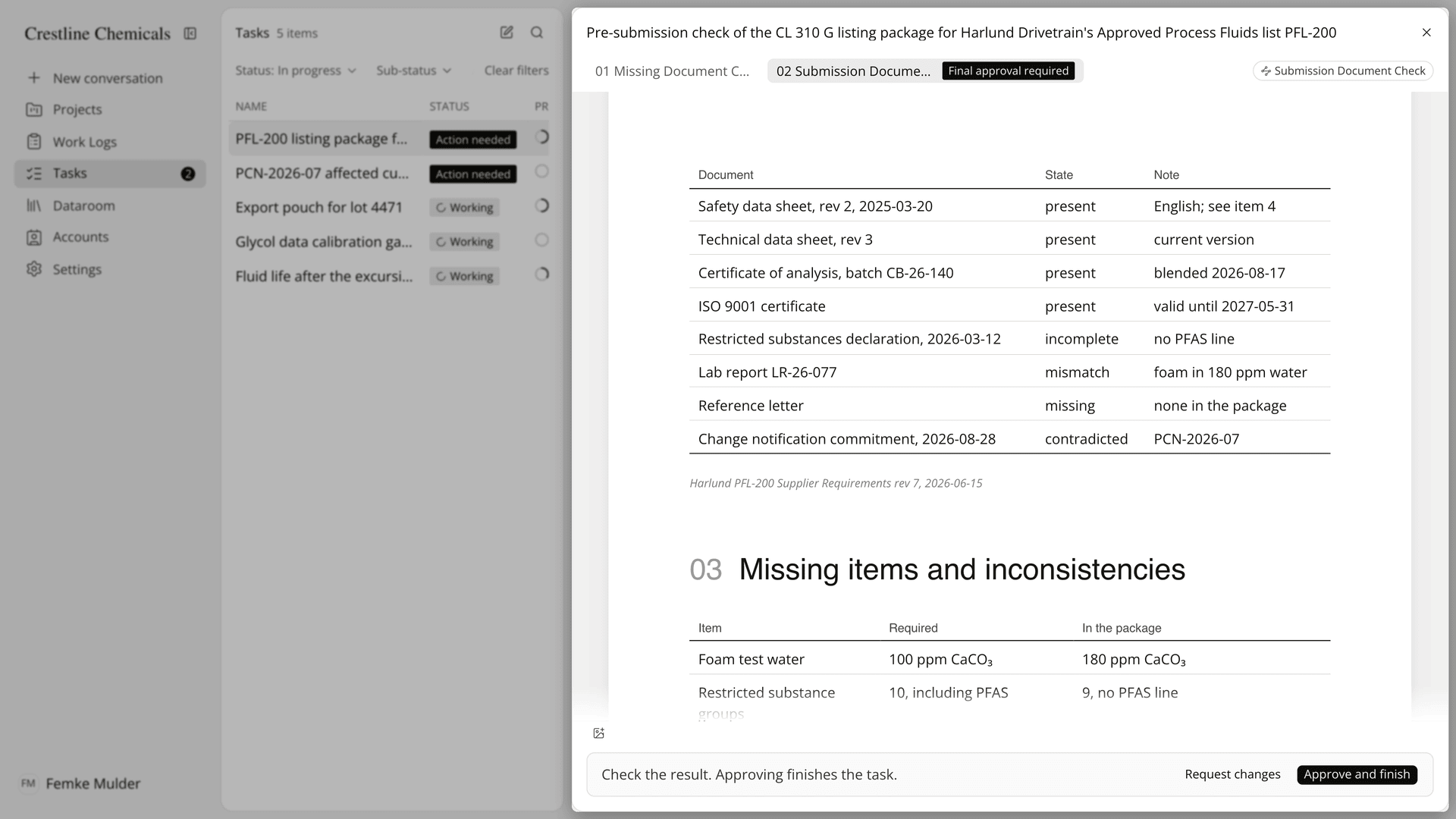
Figure 3. The checklist's table of each document's state, with the button that approves and files it.
What does a Submission Document Check not do?
A Submission Document Check does not write missing documents, does not decide technical questions and does not send anything to the customer. The check judges only whether the documents are complete and consistent. If a CoA is missing, the checklist says so and plans the fix, but someone still has to get the certificate from the supplier and upload it.
The task checks the documents in the Dataroom and finds other records from the conversation summary AI Chat hands it. If it reports that it could not find a document, check the document's product type and brand tags and its file name. If the check used a different baseline from the customer's list, the work log holding the list may not be linked to the project. AI Chat can save PDF, PNG and Markdown files to the Dataroom, while Word and Excel files have to be uploaded by hand.
Approval stays with a person. An approved checklist cannot be changed, and approval waits until every edit suggestion is accepted or rejected. Re-instruct AI deletes the earlier steps and messages permanently.
The regulatory and quality solutions page shows how the check sits beside impact scoping and document requests. If you already use Lubinpla, the Tasks guide in the app covers running and approving the steps, and the Field Care guide covers sharing the final documents with the customer.