Draft, Revise and Approve Customer Technical Documents as a Team
A technical team can have a Lubinpla task draft a customer-facing document in its last step, then revise it on the page before approval. The draft is laid out as the PDF will print, with a references page. AI changes arrive as suggestions to accept or reject. Anyone in the organization can approve, filing the PDF in the customer's account.
When a customer technical document is revised in emailed copies, the reviewer sees a figure in a table but not the lab email or work log behind it, so review tends to check wording rather than evidence.
A longer input is not a better-used one: in a peer-reviewed study, language model performance often dropped significantly when the relevant information sat in the middle of a long input rather than at its start or end (Liu et al., TACL 2024).
Lubinpla drafts a customer technical document from the records a task has read, lays it out as the PDF will print with a references page of what it cited, and files the approved PDF under the customer's account.
In Lubinpla, AI edits to a draft arrive as suggestions accepted or rejected one by one, and an edit that adds a fact the draft did not have, such as a figure or date, is marked as new.
On Lubinpla's internal benchmark, product recommendation cases that end in a customer proposal took under an hour of hands-on time each, against about 4.6 hours with a general AI agent working the same cases and documents.
How are customer technical documents drafted and approved today?
Customer technical documents are usually drafted in a word processor from an old file, checked over email and sent as a PDF from someone's outbox. Take a water treatment supplier's field engineer who has just finished a corrosion inhibitor trial at a customer's cooling tower. He opens an earlier trial report written for another customer, saves it under a new name and starts replacing text.
The figures come from three places. Corrosion coupon results arrive in an email from the lab. Dosing records sit in a spreadsheet on the plant's shared drive. The customer's water chemistry is in a site visit note written by a colleague. He copies each into the report and sends version 3 to his team lead.
The team lead edits a copy with tracked changes and asks where a value in the results table came from. The engineer answers in a separate email. A second reviewer comments on version 3 instead of the lead's copy. The PDF that finally goes out still carries the previous customer's name in the header, and the approved version lives in a sent mail folder. When the customer asks at the next annual review what was recommended, someone has to find it.
Why does drafting technical documents over email and attachments break down?
Drafting technical documents over email and attachments breaks down because the reviewer checks the text without seeing what it was built from. A team lead reading a trial report sees a value in a table, not the lab email or the work log behind it. Checking it means asking the author and waiting, so a review tends to check wording rather than evidence.
Versions split. Each reviewer edits a copy, comments land on different files, and someone has to merge them by hand. The more people review, the more likely a change made in one copy never reaches the final file.
Layout comes last. The document is reformatted after approval, so the file that leaves is not exactly the file that was approved: a table wraps differently, a cover line is left from the template, a page break splits a result from its caption.
Filing is the final gap. The approved PDF goes to the customer by email and stays in the sender's mailbox. It is not attached to the customer's record, so the next person on the account cannot tell what was sent, when and on what evidence. A document that cannot be found later cannot be reused, corrected or stood behind.
Why do general AI writing tools fall short for customer technical documents?
General AI writing tools fall short for customer technical documents because they write well but do not keep the document tied to the records it rests on. They are useful at first. A field engineer can paste trial notes into a general AI tool and get a readable first draft in minutes, often better worded than a template.
The limits appear when the document has to be checked and kept.
The work is not end to end. The tool sees the notes someone pasted, the draft is copied into a word processor, and nothing comes back to the customer's record. A reviewer still cannot see which record a figure came from.
More input does not mean better use of it. Pasting a year of work logs and three lab reports invites missed details: Liu et al. found, in question answering and retrieval tests, that model performance often degrades significantly when the relevant information sits in the middle of a long input (Liu et al., TACL 2024).
General knowledge fills gaps. When a value is missing, a general tool can write a typical one instead of saying the evidence is not there.
In Lubinpla, the document is written by the last step of a task from the records the earlier steps read. Its references page lists what those steps cited, AI changes arrive as marked suggestions, and approval files the PDF under the account.
How do you revise and approve a technical document in Lubinpla?
You revise and approve a technical document in Lubinpla by reading the draft in the task's last step, correcting it on the page or through suggestions, and pressing Approve and finish.
Read the draft. Open the task in Tasks and select its last step. Check the tables and any source captions, and the references page. Open Writing process to see what the step read and how it reasoned.
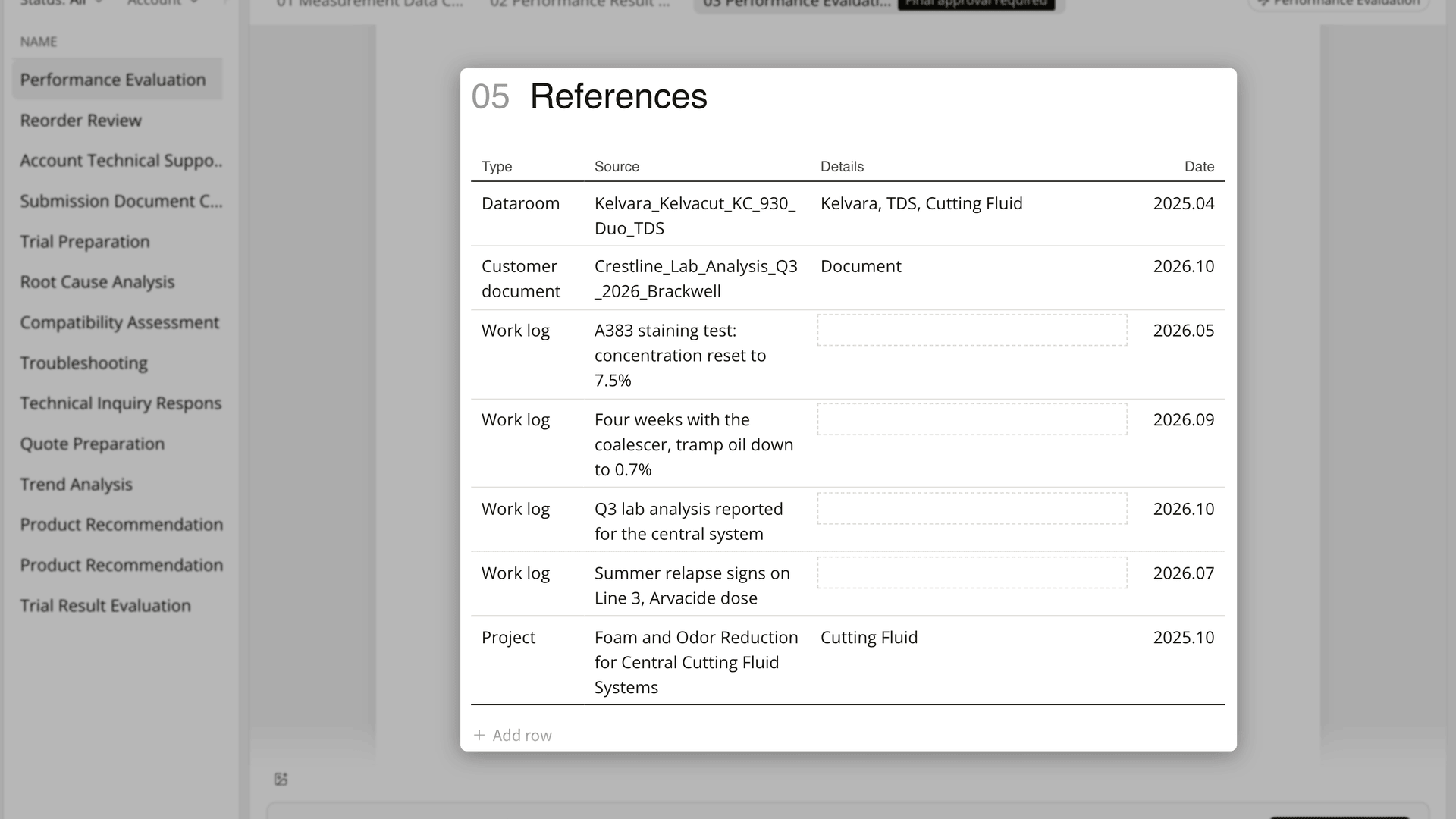
Figure 1. The references page lists the records the task's steps cited, and it prints with the PDF.
Fix small things yourself. Click into the page and type; the step shows Saving… and then Saved. Cover lines and references rows edit the same way.
Ask about or change a passage. Select text and press Ask to question it, such as where a figure comes from, or Edit to say what should change. Edit returns a card with the number of edit suggestions and a Review button.
Review each suggestion. Removed text is struck through and added text underlined. Select a change to see why the AI made it, check any change marked New info against your records, then press Accept or Reject.
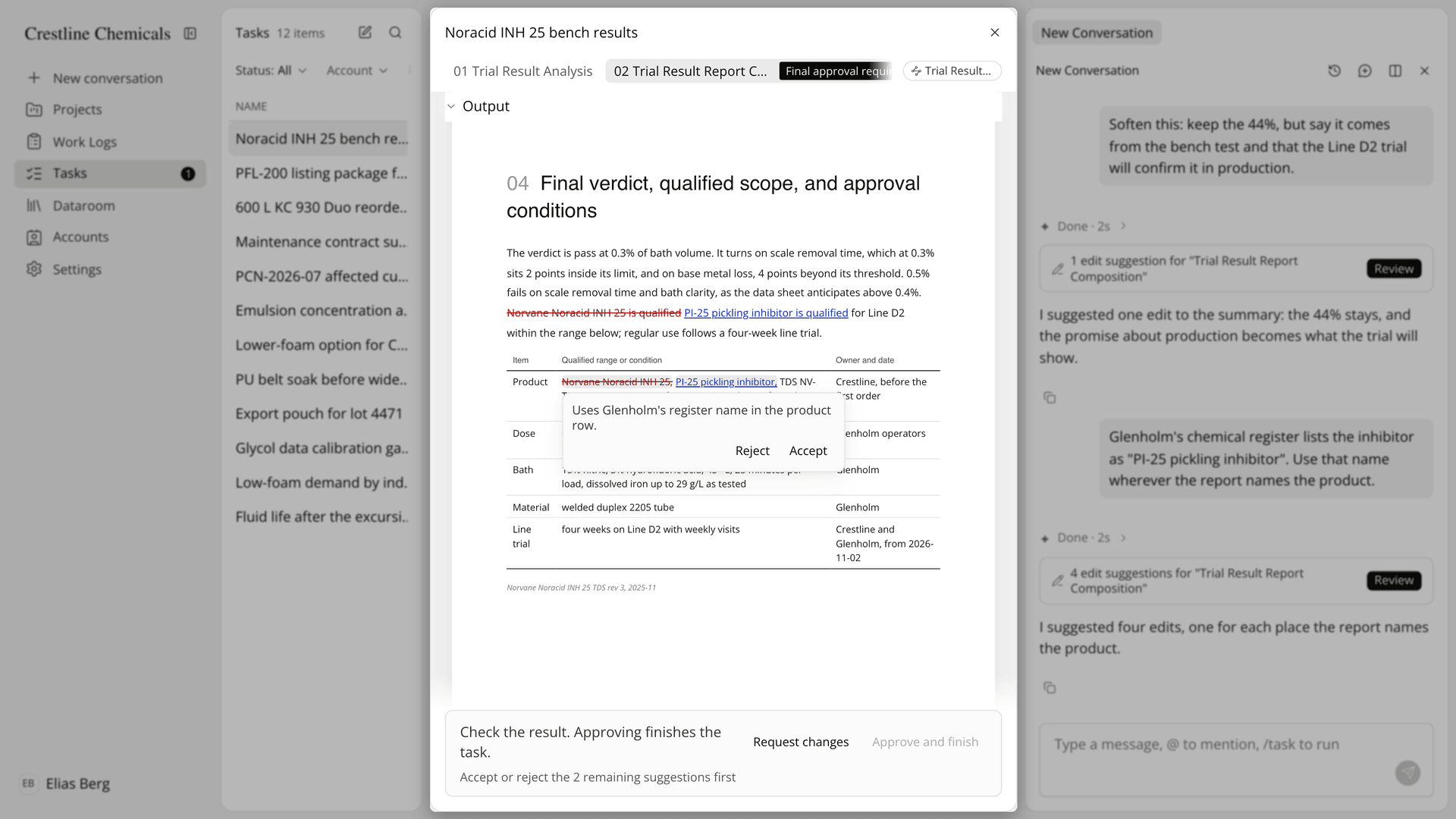
Figure 2. Each change waits in place until a person accepts or rejects it.
Approve and file. Press Approve and finish. The Filed document card shows the file name, where it went and the document type, with View in Deliverables.
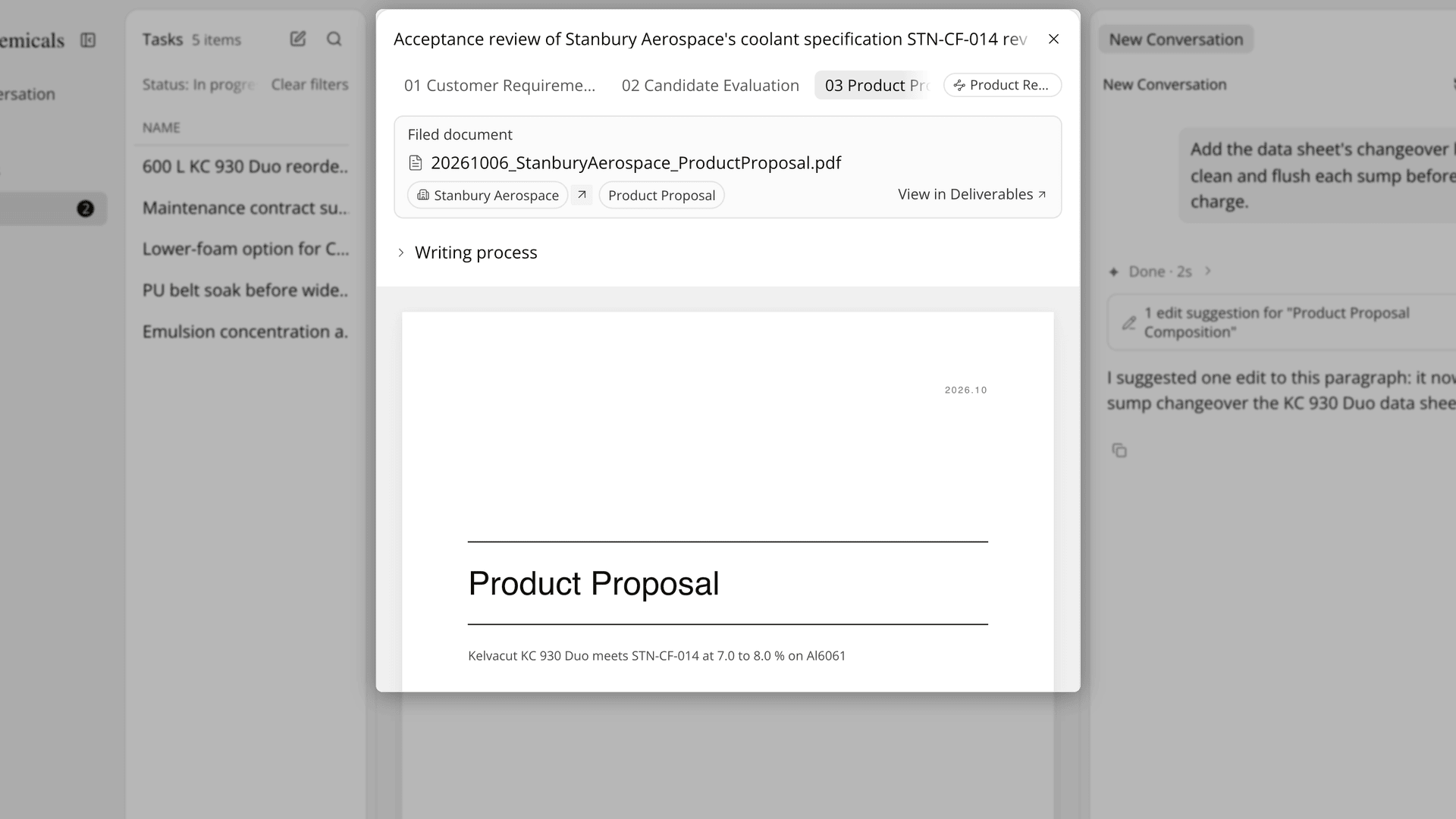
Figure 3. An approved document is filed under the account the task worked on.
The Academy video follows one performance evaluation for a sample account: the A4 draft and its references page, Ask and Edit on a passage, the marked suggestions, Approve and finish, and the Filed document card.
How does document review in Lubinpla compare with email attachments?
Document review in Lubinpla keeps the draft, the sources it cited, every proposed change and the approved PDF in one place, where email attachments spread them across copies and inboxes. The table below sets each part of the review against the two ways of doing it:
Work | Word processor and email attachments | Lubinpla Documents |
|---|---|---|
See where a figure came from | Ask the author and wait | References page and Writing process |
Fix a name or a date | Edit a copy and send it again | Type on the page, saved as you go |
Change one claim | Rewrite in one of several copies | Edit on the passage, returned as suggestions |
Catch an added fact | Compare versions by eye | A change marked New info |
Check the layout | Reformatted after approval | Draft laid out as the PDF will print |
Keep the approved version | Sent mail in one person's inbox | PDF filed in the account's Deliverables |
The row that matters most for a team lead is the added fact. When a draft is revised in copies, a new figure can slip in with no sign that it is new. In Lubinpla, a suggestion whose window shows New info adds a fact the document did not have, such as a figure, a specification, a date or a price, so the reviewer knows to check it against the records before accepting it.
The last row matters when the customer asks what was recommended. In the email workflow, the answer is in one person's sent folder. In Lubinpla, the approved PDF sits in the account's Deliverables under a file name that joins the approval date, the account name and the document type, such as 20261015_Stanbury_ProductProposal.pdf for a sample account, so the next person on the account finds it without asking.
What does the Documents feature in Lubinpla not do?
The Documents feature does not verify facts for you, and it does not let you change a document after it is filed. The draft rests on what the task's steps read and cited, so a lab result never put into Lubinpla is not among its sources. A change marked New info adds a fact the document did not have, and a person still checks it against the team's records.
Editing has limits. You can type into the draft and use Edit only while the document waits for approval. Once it is filed, it can no longer change, though Ask still works on an approved document. Ask and Edit work on a computer, not on a phone. The editor only offers what the PDF can print.
The references page lists only records that belong to the account receiving the document. Each skill writes one type of document, and the type stays with the file and its name. Internal types, such as a Trend Analysis Report, are filed under Our company instead.
A filed document starts as Private, so the account's contacts do not see it until you share it, after which it appears in their Client Space. Running a task up to the document step is covered in handling product recommendation requests with Tasks, and the Tasks page lists which document each task ends in. If you already use Lubinpla, the Documents guide in the app covers cover fields, filing rules and file names.