Turn Visit and Call Notes Into Customer Records With Work Logs
A technical team turns visit and call notes into customer records by saving each as a Lubinpla work log linked to the account and project. AI Chat writes the log from a plain message and keeps figures, units and lot numbers as written, and the team can search it, comment on it and ask AI Chat about it.
A commitment made on a customer call often exists nowhere in writing, so when the account changes hands, the colleague who covers it has to ask the customer what the supplier agreed.
For cooling towers, the US CDC Legionella control toolkit advises keeping site-specific log sheets, test procedures, service reports and test results on site as part of operation and maintenance (US CDC, accessed 2026).
Lubinpla turns a plain message about a visit or call into a work log linked to the customer account and line, keeping figures, units, product names and lot numbers exactly as written.
Site photos and handover notes sit on the same work log as the visit, and Lubinpla's AI can later search the logs to answer what was measured on a line last time.
What happens today with field visit and call notes?
Field visit and call notes today mostly live with the person who took them. Picture a field engineer at a water treatment chemical supplier who services the cooling towers at a customer's food plant. On the monthly visit she measures conductivity and inhibitor level, checks the biocide residual, pulls a corrosion coupon and photographs scale on the tower fill. The readings go into a notebook. The photos stay on her phone.
The service report gets typed up at the end of the week as a document attached to an email to the plant's utilities engineer. Two days after the visit, he calls: he will raise the bleed rate if she checks the dosing pump calibration on the next visit. She agrees, and the agreement goes on a sticky note.
Then she goes on leave, and a colleague covers the account. The plant calls about the pump. The colleague searches the shared inbox, finds the service report but not the call, and never sees the photos. He has to ask the customer what was agreed, which is the one question the customer expected the supplier to answer.
Nothing in that week was careless. Each note was written in the place that was fastest at the time, and none of those places belongs to the customer record.
Why do visit and call notes in notebooks and inboxes fail the team?
Visit and call notes in notebooks and inboxes fail the team because a note only becomes a customer record when someone else can find it by customer and line, read what was measured, see what was promised and continue from there. A notebook is readable by one person. An inbox is searchable by one person. A photo on a phone has lost the sentence that explained it.
Calls fare worst. They are short and verbal, and the commitment made in one often exists nowhere in writing. When an account changes hands, the handover is a forwarded email chain, and the new rep learns the gaps from the customer.
For some applications the customer's site is advised to keep these records too. The US Centers for Disease Control and Prevention lists keeping site-specific log sheets, test procedures, service reports and test results on site among the operation and maintenance guidelines in its Legionella toolkit for cooling towers (US CDC, accessed 2026). A supplier whose service reports sit in one engineer's sent mail cannot hand the site a complete history when it asks, which suggests that scattered notes cost more than the supplier's own time.
The fix is not more writing. It is writing each note once, in a place tied to the customer and line, where the next person and the AI can both read it.
Can a general AI tool turn visit notes into customer records?
A general AI tool can turn a page of rough visit notes into a clean report in seconds, and that is a real help. An engineer pastes the notebook text, gets a readable summary and sends it the same afternoon. For one visit, the result is often better written than the original.
The trouble is where the summary ends up. It stays in the chat window or gets pasted into an email, so it never reaches a customer record, and the next person is back to searching an inbox. The tool also sees only what was pasted. It does not know the readings from earlier visits on the same tower or a promise made on an earlier call, so it cannot point out that the inhibitor level has been falling since spring or that a pump check is still open. Its advice comes from general knowledge of cooling water, not from the procedure your team agreed with this plant.
The format drifts too. Each engineer prompts differently, so reports come out in different shapes. A shared prompt helps until the person who maintains it moves on.
In Lubinpla, AI Chat saves the log straight into Work Logs, linked to the account and project it recognizes and shaped by the team's work log template once one is set, and AI Chat and tasks can later search and read those logs.
How do you turn a visit or call into a work log in Lubinpla?
You turn a visit or call into a work log by telling AI Chat what happened, checking the links, adding photos and leaving handover notes in the comments.
Tell AI Chat what happened. Type what you saw, what was measured and what was agreed, the way you would text a colleague. Start the message with /worklog to make sure it becomes a work log. AI Chat links the account and project it recognizes and asks when it is unsure where the log belongs.
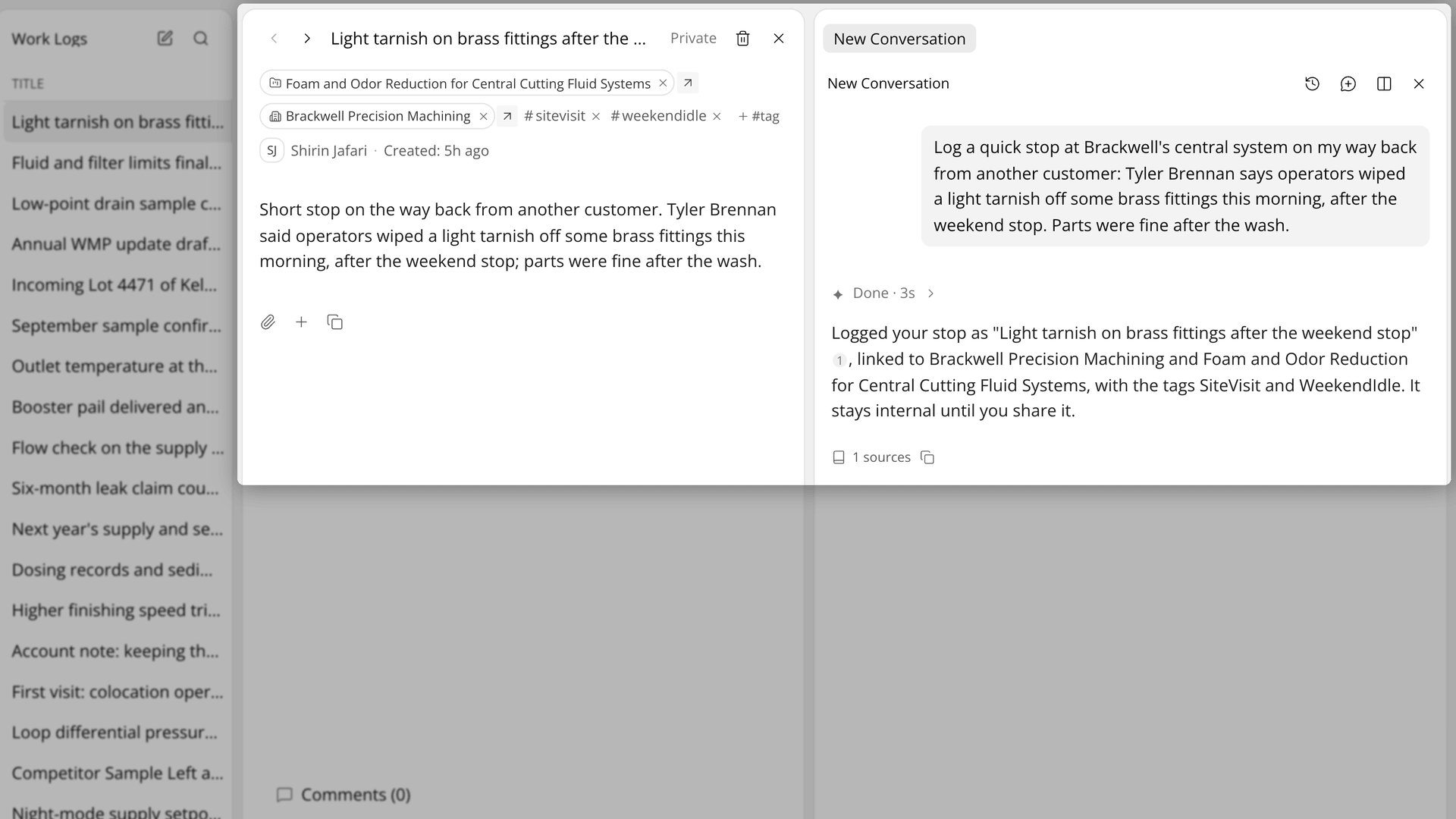
Figure 1. One plain message becomes a work log linked to the customer and the line.
Check the links. Under the title, Project is the line, Account is the companies involved, and #tag holds words for finding the case again. Press a link to change it.
Add field photos. On your phone, open the log in the browser, press Attach file and choose Take photo or Photo library.
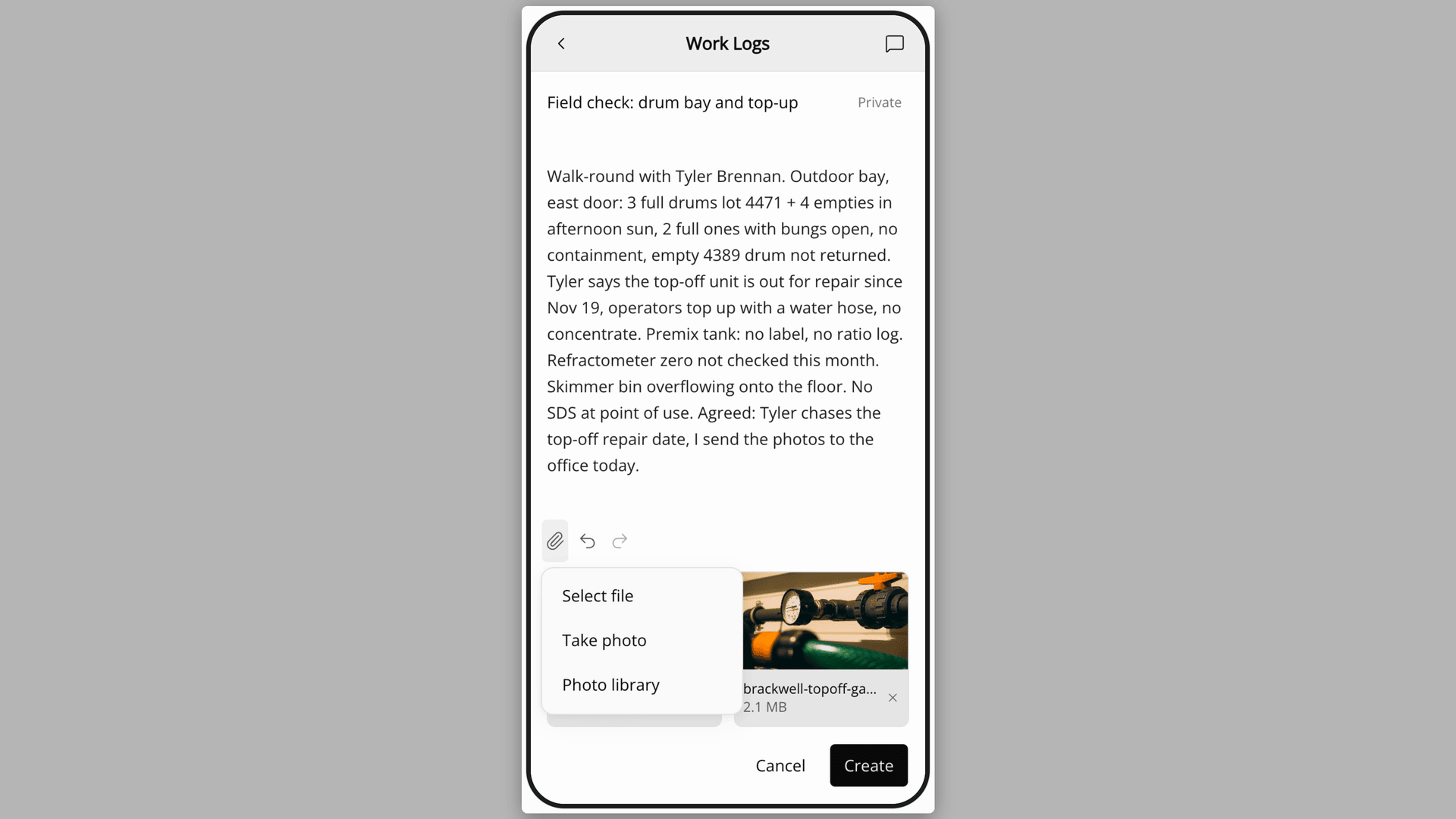
Figure 2. The attach menu open on a phone, with photos taken on site already on the log.
Hand over in the comments. Open the log's comments, write the note, type @ to pick a colleague and press Send.
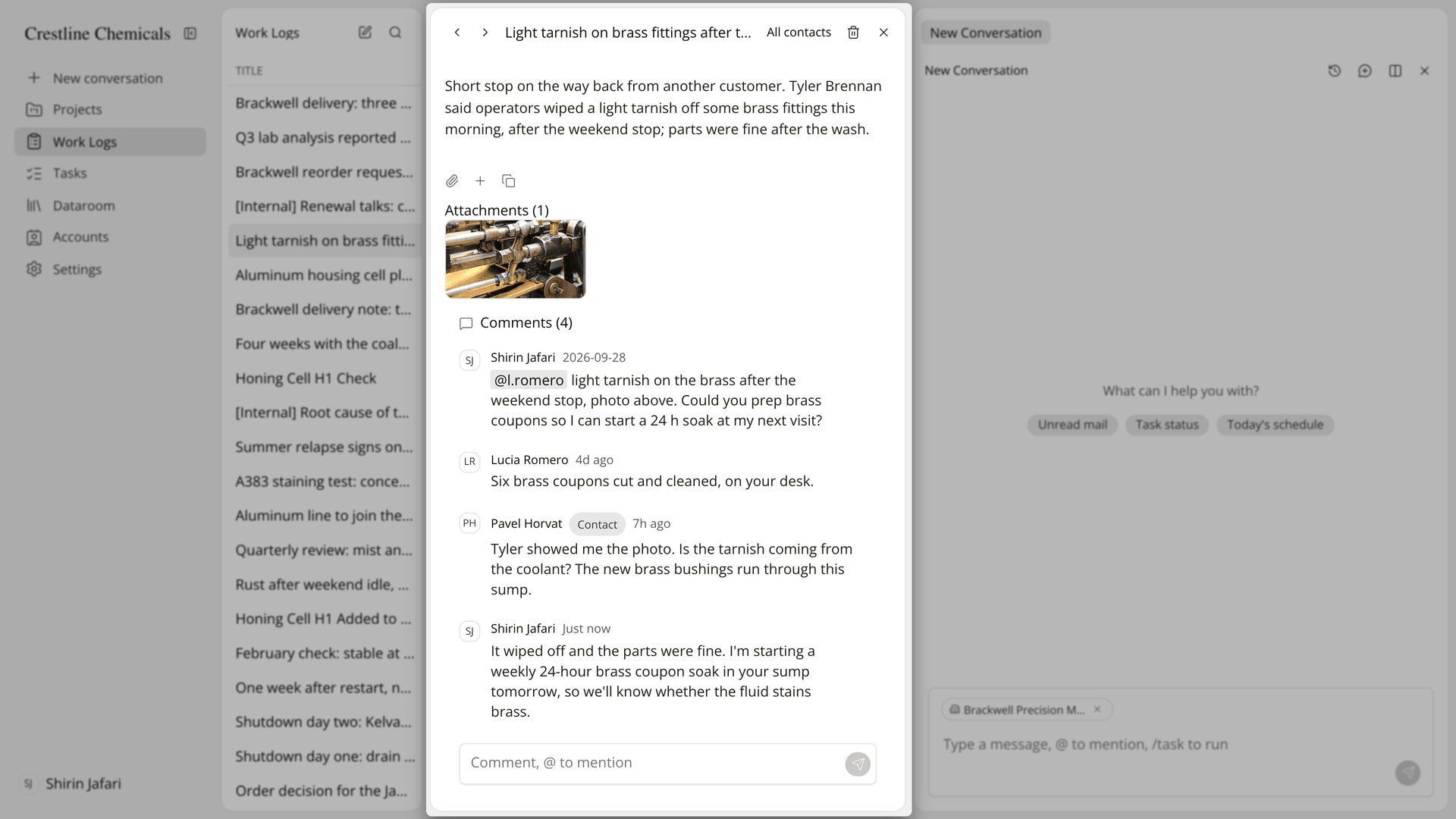
Figure 3. The handover sits on the log, next to the visit and its photos.
Find it later. Use Search work logs, filter by Project, Account or Author, or ask AI Chat what you measured last time.
The Academy video shows a visit written as a chat message, a photo added from a phone, a handover on the log, questions answered from past visits, and old reports imported as drafts.
How do work logs compare with notebooks and email for visit notes?
Work logs keep each visit, call, photo and handover note on one record tied to the customer and line, where notebooks and email keep them with whoever wrote them. The table below follows a visit note from the plant floor to the next person who reads it:
Work | Notebook, phone and email | Lubinpla Work Logs |
|---|---|---|
Write up a visit | Typed into a report days later | One AI Chat message, saved right away |
Record a call | Often a sticky note, or nothing | The same short message, linked to the line |
Keep site photos | In one person's camera roll | Attached to the log, where the AI can open them |
Tie notes to a customer | A folder or file name | Project, Account and #tag links |
Hand over | Forward an email chain | A comment with an @mention on the log |
Find the last visit | Search one inbox | Search work logs, Filters, or ask AI Chat |
Bring in old reports | An archive folder | Import Work Logs, dated as the visits were |
The row that matters most when someone is away is the handover. A forwarded email carries the report but not the call, and the photos rarely travel with it. A comment on the log sits under the visit, the line it belongs to and the photos, so the colleague who picks it up reads all three together.
Old reports need not stay behind. Where your plan includes it, Import Work Logs in Settings turns text, Markdown, CSV and PDF files and scanned pages into work logs. If your team has no work log template yet, it checks a few drafts first, and the approved drafts set the format for the rest. Imported logs keep the dates of the original reports, so sort oldest first or use Created date range to find them.
What do work logs not do with visit and call notes?
Work logs hold only what your team writes down, and AI Chat writes only from what you tell it. A log from AI Chat is saved right away with no approval card, so read its reply to see where the log went. AI Chat cannot attach files or post comments, so add photos and handover notes yourself. It may offer to add what a log confirms to the project, and does so only if you agree.
An @mention does not send a notification yet. Tell your colleague the log is waiting for them. Anyone in your organization can edit or delete any work log, not only its author. Deleting an attachment skips Trash and is permanent, while a deleted log can be restored from Trash for 30 days.
A log without a customer is hard to find again, so check the Project and Account links on every log. The AI can open attachments of up to 20MB. Larger files stay downloadable, but the AI does not read them.
A log written by AI Chat is not shared with customers, sharing one with the customer's contacts needs a linked project, and a log does not replace the log sheets a customer's site keeps for its own programs. The Work Logs page shows how logs connect to Projects, and if you already use Lubinpla, the Work Logs guide in the app covers templates, sharing and imports in full.